
Features
README Editor
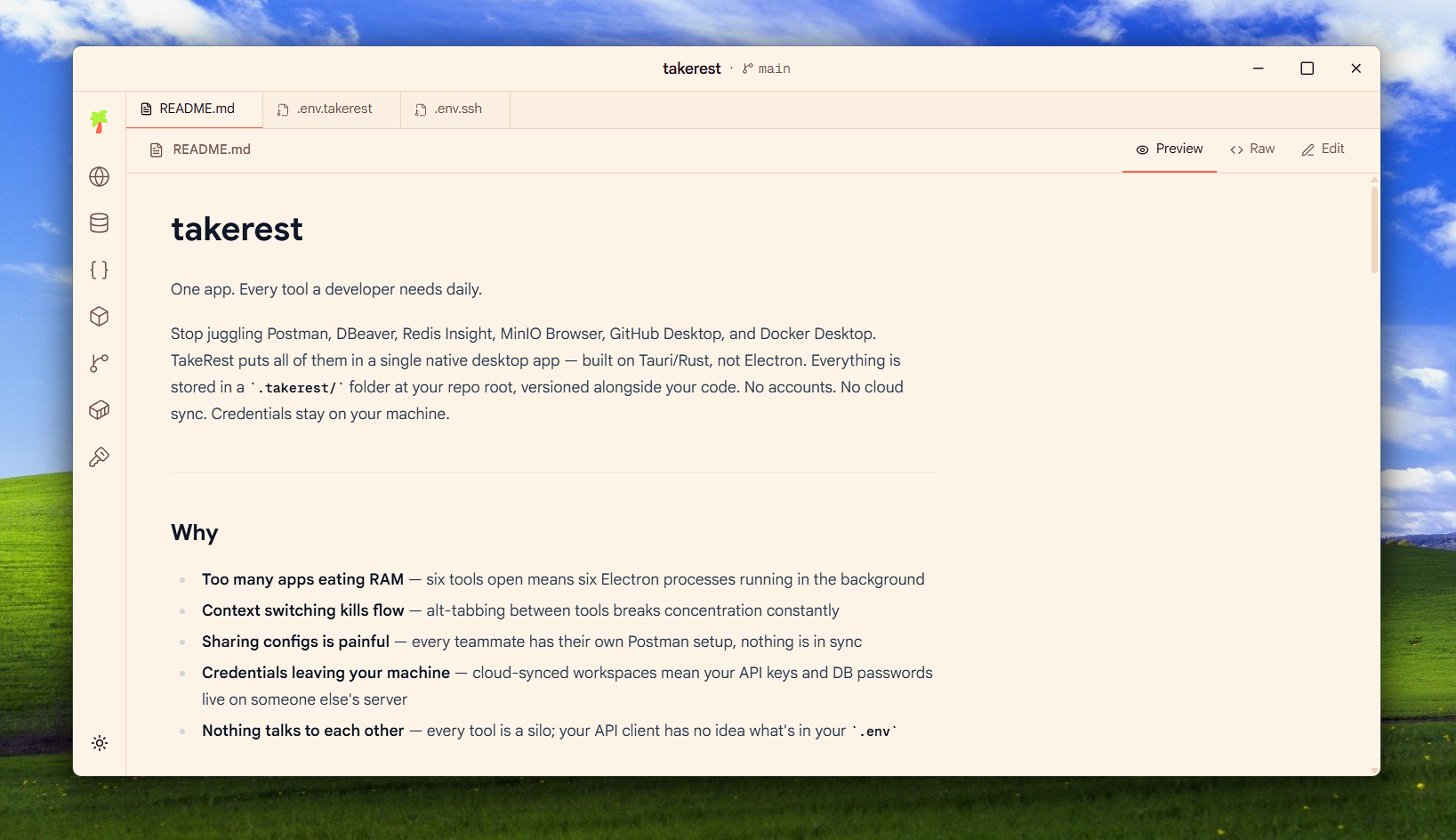
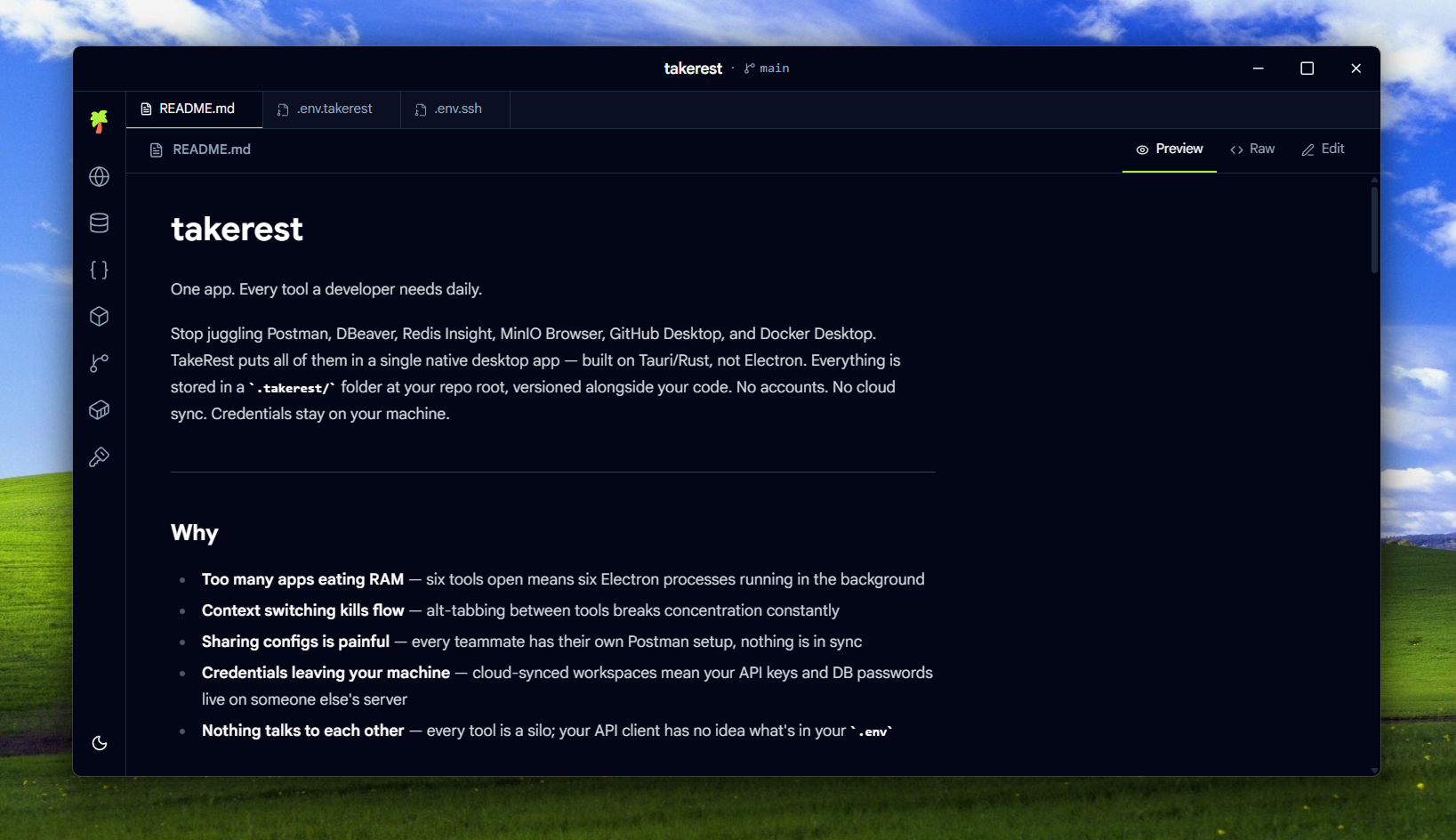
View and edit your project's README.md without leaving the app —
with a live preview, raw mode, and a full CodeMirror editor.
What it does
When you open a project, TakeRest finds its README.md and makes it
accessible in three modes: a rendered preview, the raw markdown source, and an editable CodeMirror view.
Changes made in edit mode are written to disk immediately. Since the README lives in your repo, your edits show up in Git diffs and PRs like any other file change.
Three modes
Preview
Renders the markdown as HTML — headings, code blocks, lists, links, tables. The same view you'd see on GitHub. Useful for reviewing docs without the distraction of syntax.
Raw
Shows the raw markdown source in a read-only, monospaced view. Good for quickly checking frontmatter, link syntax, or code fence language tags.
Edit (CodeMirror)
A full-featured CodeMirror 6 editor with markdown syntax highlighting.
Supports bracket matching, line numbers, undo/redo, and keyboard shortcuts.
Save with ⌘S / Ctrl+S.
Example
Raw markdown on the left, rendered output on the right.
# My Project

A short description of what this project does.

## Getting Started

```bash
git clone https://github.com/you/myproject
cd myproject
bun install
```

## Environment Variables

Copy `.env.example` to `.env` and fill in the values.
My Project
A short description of what this project does.
Getting Started
git clone https://github.com/you/myproject
cd myproject
bun install
Environment Variables
Copy .env.example to .env and fill in the values.
How to access it
Open a project
Open any folder containing a README.md. TakeRest detects it automatically.
Click the README icon
In the activity bar, click the Book icon to open the README panel.
Switch modes
Use the Preview / Raw / Edit tabs at the top of the panel to switch views.
Edit and save
In Edit mode, type your changes and press ⌘S or Ctrl+S to save to disk.